Key points
- Works on every current Fire TV Stick and Fire TV smart TV
- Takes about 10 minutes the first time
- You need your Aero IPTV login from WhatsApp
The Amazon Fire TV Stick is the most popular way to watch Aero IPTV in both the USA and the UK. It is inexpensive, plugs straight into an HDMI port and, in its 4K versions, has plenty of power for large channel lists and high-quality streams. This guide covers the Fire TV Stick (all generations), Fire TV Stick 4K and 4K Max, Fire TV Cube and TVs with Fire TV built in.
Before you start
- Update the device. Go to Settings › My Fire TV › About › Check for Updates and install anything waiting.
- Have your login ready. After you order, we send your Aero IPTV details on WhatsApp: usually a server address, username and password (Xtream Codes), sometimes an M3U link as well. Keep the chat open on your phone.
- Check your connection. For 4K, aim for 25 Mbps or more on the stick itself. A Fire TV Ethernet adapter is a cheap upgrade if your Wi-Fi is weak at the TV.
Step 1: Choose a player app
Aero IPTV plays through a third-party IPTV player. Some players are available directly in the Amazon Appstore; search for "IPTV player" from the Fire TV home screen and read recent reviews before choosing. Others are installed from the developer's own site using the free Downloader app. When you order, we tell you which player we currently recommend for Fire TV and the exact steps for it.
Only install apps from the official store or from the developer's own website. Never install a "pre-loaded" app sent by someone you do not know.
Step 2: Allow apps from outside the store (only if needed)
If your recommended player is not in the Appstore, you need to allow app installs from the Downloader app:
- Open Settings › My Fire TV. If you do not see Developer Options, open About and press the select button on your device name seven times until a message says you are a developer.
- Go back, open Developer Options › Install unknown apps (on older models: Apps from Unknown Sources).
- Install Downloader from the Appstore, then switch it on in the Install unknown apps list.
- Open Downloader, enter the address of the player's official download page and follow the prompts to install it.
Step 3: Add your Aero IPTV login
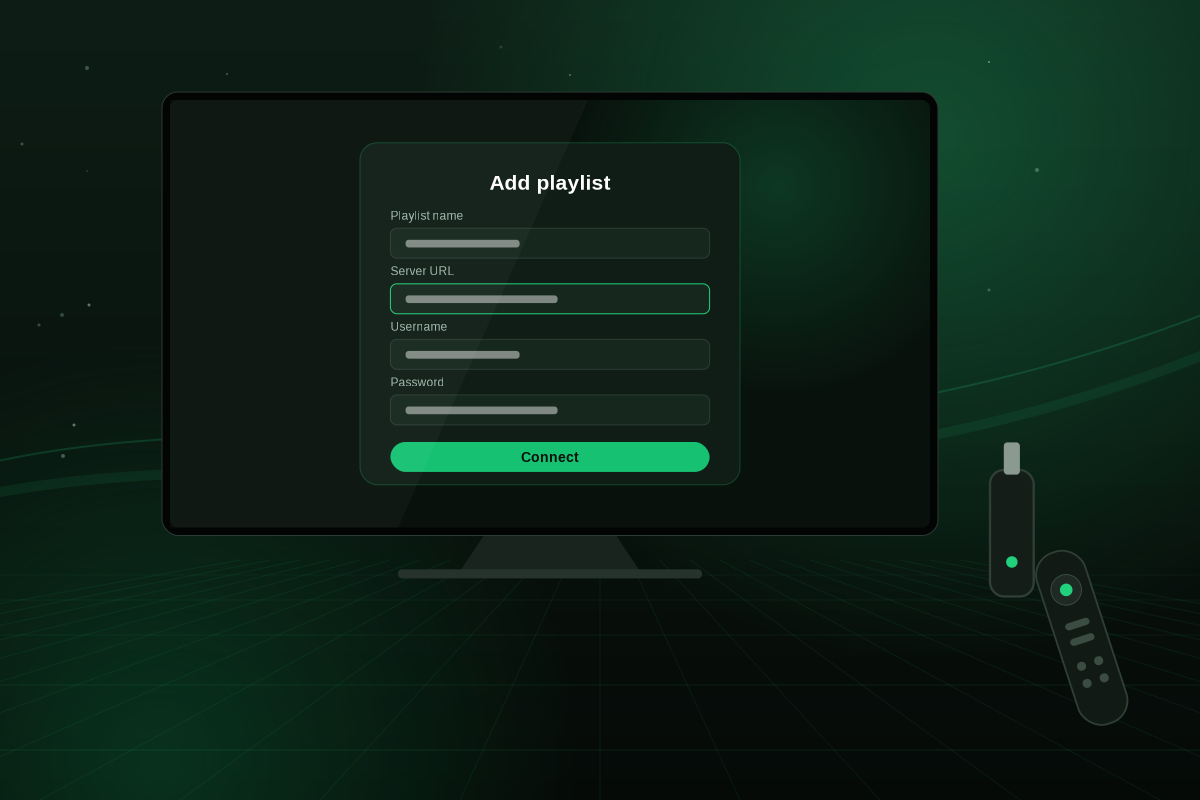
- Open the player and choose Add playlist, Add user or similar.
- Pick Xtream Codes (sometimes called "Xtream API" or "Login with username"). It is usually quicker than M3U and loads the TV guide automatically.
- Type the server address, username and password exactly as we sent them. The server often starts with
http://and may end with a port such as:8080. - Save, then wait while the app downloads the channel list, movies, series and guide. The first load can take a minute or two; do not interrupt it.
Typing with the Fire TV remote is slow. The Fire TV app on your phone includes a keyboard, which makes long passwords much easier to enter.
Step 4: Settings worth changing
- Match frame rate. In Settings › Display & Sounds › Display › Match Original Frame Rate (4K models), switch it on so sport looks smooth.
- Favorites. Add the channels you watch most to a favorites group so they open first.
- Hide categories you never watch. The list loads faster and is easier to browse.
- Guide offset. If listings are an hour or more out, set the right time zone in the player or check the Fire TV's own time zone.
Step 5: Keep the stick running smoothly
Fire TV Sticks have limited storage. Uninstall apps you do not use, and clear the player's cache from Settings › Applications › Manage Installed Applications if it starts to feel slow. Restarting the stick once a week (hold Select and Play together for five seconds) clears memory and solves many small glitches.
Common Fire TV problems
| What you see | Likely cause | Try this |
|---|---|---|
| "Authorization failed" or "Invalid login" | A typo or an extra space | Re-enter the details carefully, or paste them using the Fire TV phone app keyboard |
| Channels load but movies are empty | The first load was interrupted | Refresh the playlist from the player's settings and wait for it to finish |
| Stutter on 4K or sport | Weak Wi-Fi or an older stick | Move the router closer, use an Ethernet adapter, or choose the HD version of the channel |
| Stick restarts or freezes | Low storage or overheating | Remove unused apps, clear cache and make sure the stick is not trapped behind the TV |
Still stuck? Our buffering guide has more fixes, or send a photo of the screen to us on WhatsApp.